From here you can book your game console, controller repair with us
Game Console & Controller Repairs
Any PS5 Console, PS5 Controller
Any PS4 Console, PS4 Controller
Any Xbox Series Console, Xbox Series Controller
Any Xbox One Console, Xbox One Controller
Any Nintendo Switch Console, Joy Con Controller
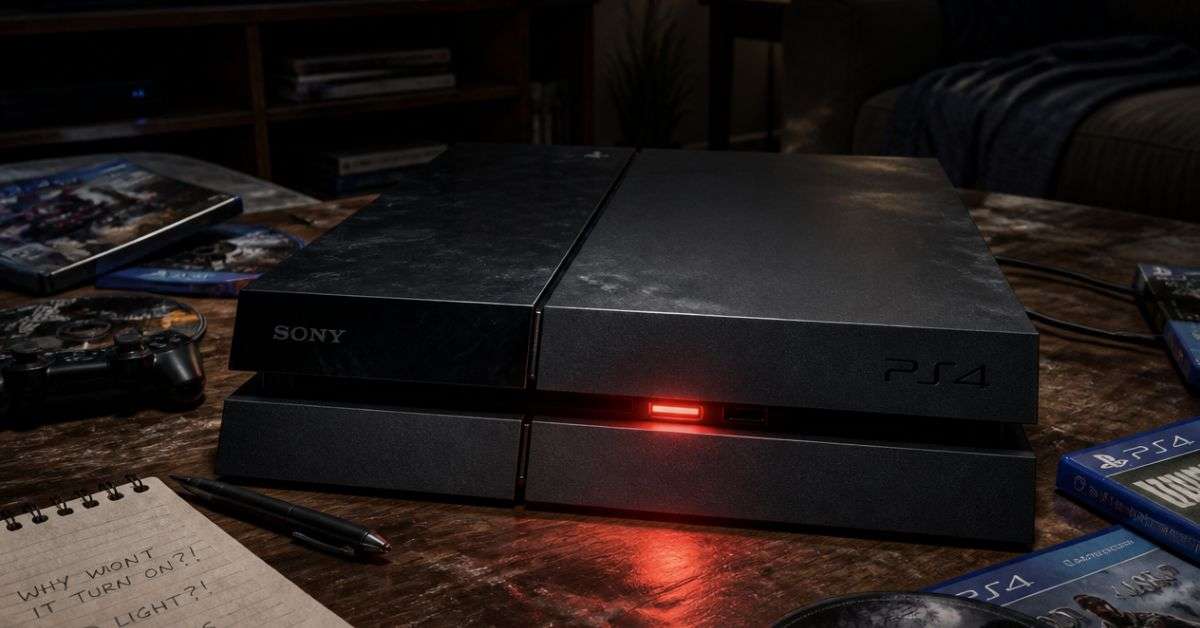
PS4 Not Turning On? Common Causes, Easy Fixes & PlayStation Repair in Chennai
You’ve finally found time to play your favourite game. You pick up your DualShock 4 controller, press the PS button, and look at the television.
Nothing happens.
You try switching on your PlayStation 4 directly. Perhaps you hear a beep, see a blue light for a few seconds, or get absolutely no response.
It’s frustrating, especially when your PS4 was working perfectly the previous day.
If your PS4 is not turning on, don’t rush to replace the console.
A PlayStation 4 can develop startup problems for several reasons, ranging from a simple power connection issue to an internal hardware fault.
At ConsoleFixit, we help gamers across Chennai find repair support for PS4, PS4 Slim, and PS4 Pro consoles.
Before arranging a repair, here are a few things worth checking.
Why Is My PS4 Not Turning On?
When your PS4 fails to start, the exact symptoms can help identify what might be wrong.
Here are some common situations:
No light and no beep: The console may not be receiving power, or there could be an internal power-related fault.
PS4 beeps once and turns off: A power, startup, or internal hardware problem may be preventing normal operation.
Blue light keeps blinking: The console may be experiencing a startup error.
White light but no display: The PS4 may be running, but the television isn’t receiving the picture.
PS4 shuts down while gaming: Overheating, power-related problems, or other hardware faults could be involved.
These symptoms are useful starting points, but they don’t confirm which component needs repair.
6 Things to Try Before Taking Your PS4 for Repair
1. Check Your Power Cable and Wall Socket
Start with the simplest possibility.
Check whether the PS4 power cable is connected securely to the console and the power outlet.
If you’re using an extension board, try connecting the console directly to a suitable working wall socket.
Inspect the cable for visible damage. If it is frayed, cracked, or unusually hot, stop using it.
Sometimes what appears to be a serious console problem is actually an external power connection issue.
2. Completely Power Cycle Your PS4
If your PlayStation appears frozen or refuses to start normally, a power cycle may help.
Sony recommends disconnecting the power cable after the console has been fully switched off, leaving it disconnected for around 20 minutes, then reconnecting it and trying again when troubleshooting certain startup and Safe Mode problems.
Never unplug the console while its power indicator shows that it is actively operating or shutting down normally.
3. Understand What Your PS4 Power Light Means
The colour of your console’s power indicator can reveal important information.
Solid white light: Your PS4 is powered on. If the television shows a black screen, investigate the HDMI connection.
Blinking blue light: The console may be experiencing a startup error.
Solid orange light: The system is in Rest Mode rather than fully switched on.
Pulsing red light: The console may be overheating. Turn it off, let it cool, and check its ventilation.
No light: The console is powered off. If it doesn’t respond to the power button, further power troubleshooting may be needed.
Understanding these differences can prevent unnecessary repairs.
4. Test Your HDMI Connection
Sometimes people think their PS4 isn’t turning on when the actual issue is that the picture isn’t reaching the television.
If the console’s light turns solid white but the television displays No Signal, try:
Selecting the correct HDMI input on the television.
Checking that both ends of the cable are firmly connected.
Testing another compatible HDMI cable.
Connecting the console to another television or monitor, if available.
If the picture returns, your PlayStation may not have a startup problem after all.
Start your Buy, Sell, Repair Game Console. To find your closest store
Leave your mobile phone number and we will call you back
5. Try Starting Your PS4 in Safe Mode
Safe Mode is a built-in PlayStation troubleshooting feature.
It can help with certain display, software, and startup problems.
To access Safe Mode:
Turn off the PS4 completely.
Press and hold the power button.
Release the button after the second beep, approximately seven seconds after the first.
Connect your DualShock 4 controller using a compatible USB data cable.
Press the PS button.
If the Safe Mode menu appears, your console has successfully reached the recovery environment.
Depending on the problem, options such as Restart System or Change Resolution may help.
Important: Do not select Initialize PS4 or reinstall system software without understanding the consequences. These actions can erase user data.
If Safe Mode doesn’t appear, the console may require further diagnosis.
6. Check for Overheating Symptoms
An older PS4 may develop cooling problems after years of use.
Dust buildup, restricted airflow, or a malfunctioning cooling system can affect performance.
Possible warning signs include loud fan noise, overheating messages, and unexpected shutdowns.
Make sure your PlayStation is placed on a firm surface with enough space around its ventilation openings.
Avoid enclosed cabinets that restrict airflow.
If overheating continues, ask a technician to inspect the cooling system rather than attempting complicated internal repairs yourself.
PS4 Beeps but Doesn’t Turn On – What Could Be Wrong?
This is one of the more frustrating PlayStation problems.
You press the power button, hear a beep, perhaps see a light briefly, and then the console switches off.
Several faults can cause this behaviour.
Possible causes include problems with power delivery, internal components, or startup circuitry.
A failing internal component cannot be identified reliably from a single beep alone.
Professional diagnosis can help determine whether the problem is repairable and which components need attention.
Should You Repair Your PS4 or Buy a New Console?
If your PlayStation 4 has stopped working, buying another console might seem like the easiest option.
But replacement isn’t always necessary.
If your console is otherwise in good condition, repairing a specific fault may be more economical.
Consider the repair quotation, age of the device, condition of its other components, and the price of a suitable replacement console.
For an older PS4 with multiple hardware problems, replacement may be a more practical choice.
The important thing is to understand the fault before making that decision.
PS4 Repair in Chennai – Visit ConsoleFixit Near You
If the basic troubleshooting steps haven’t worked, you can contact ConsoleFixit for professional gaming console repair assistance.
ConsoleFixit provides PlayStation console and controller repair enquiries through four Chennai locations.
ConsoleFixit – Vadapalani
Are you searching for PS4 repair near Vadapalani?
Our Vadapalani branch is located on Arcot Road, opposite Nexus Forum Vijaya Mall.
Customers can enquire about PS4 power issues, startup failures, HDMI problems, overheating, and other repair requirements.
Address: No. 159, KP Tower, 2nd Floor, Arcot Road, opposite Nexus Forum Vijaya Mall, Vadapalani, Chennai – 600026.
What to Tell a Technician When Your PS4 Won’t Start
A clear description of the problem can make the initial inspection easier.
Instead of simply saying, “My PS4 isn’t working,” explain exactly what happens when you try to switch it on.
For example:
“My PS4 Slim makes one beep, shows a blue light for two seconds, and then turns off. I’ve already tested another wall socket, but the problem continues.”
Mention whether the console was dropped, exposed to liquid, overheating, or experiencing problems before it stopped working.
Also tell the technician if your saved games and stored data are important, so you can discuss the implications of any storage or software repair.
How Much Does PS4 Repair Cost in Chennai?
PS4 repair costs vary depending on the model and the fault.
A power cable problem may be inexpensive to resolve, while internal power supply or circuit board repairs can require more specialised work.
Before approving the repair, ask for a clear quotation, expected completion time, parts information, and any applicable service warranty.
If your PS4 is eligible for manufacturer service, check those options as well.
Frequently Asked Questions
Why is my PS4 not turning on even though it’s plugged in?
Possible causes include a faulty power connection, damaged cable, internal power supply fault, or another hardware problem. Start by checking the cable and wall socket.
Why does my PS4 beep once and then turn off?
This can indicate a startup or power-related fault. The beep alone isn’t enough to identify the defective component.
What does a blinking blue light on PS4 mean?
A PS4 that remains on a blinking blue light may be experiencing a startup error. Sony recommends troubleshooting the console when the indicator doesn’t progress to its normal powered-on state.
Can a completely dead PS4 be repaired?
Some PS4 consoles that show no signs of power can be repaired, depending on the cause and extent of the damage. Inspection is needed before confirming repairability.
Where can I repair my PS4 in Chennai?
ConsoleFixit has Chennai locations in Vadapalani, Anna Nagar, Chromepet, and Arumbakkam where customers can enquire about PS4 repairs.
Does ConsoleFixit repair PS4 Slim and PS4 Pro?
ConsoleFixit advertises PlayStation repair services. Contact your nearest branch to confirm the available repair options for your particular PS4 model and fault.
Your PS4 Might Still Have Plenty of Gaming Left
A PlayStation that refuses to switch on can make you think you’ve reached the end of your gaming experience.
But a startup problem doesn’t always mean the console needs replacing.
Sometimes a simple troubleshooting step is enough. In other cases, an experienced technician can identify a hardware fault and explain whether repair is practical.
Looking for PS4 repair in Chennai?
Contact ConsoleFixit and choose your nearest branch in Vadapalani, Anna Nagar, Chromepet, or Arumbakkam.
Tell us what’s happening with your console and enquire about an inspection.
ConsoleFixit – Your Gaming Console Repair Partner in Chennai.







 PlayStation Repair
 Xbox Repair
 Nintendo Repair
 Virtual reality (VR) Repair
 Accessories Repair