From here you can book your game console, controller repair with us
Game Console & Controller Repairs
Any PS5 Console, PS5 Controller
Any PS4 Console, PS4 Controller
Any Xbox Series Console, Xbox Series Controller
Any Xbox One Console, Xbox One Controller
Any Nintendo Switch Console, Joy Con Controller
PS5 Keeps Disconnecting from Wi-Fi? 8 Easy Fixes & PlayStation Repair in Chennai
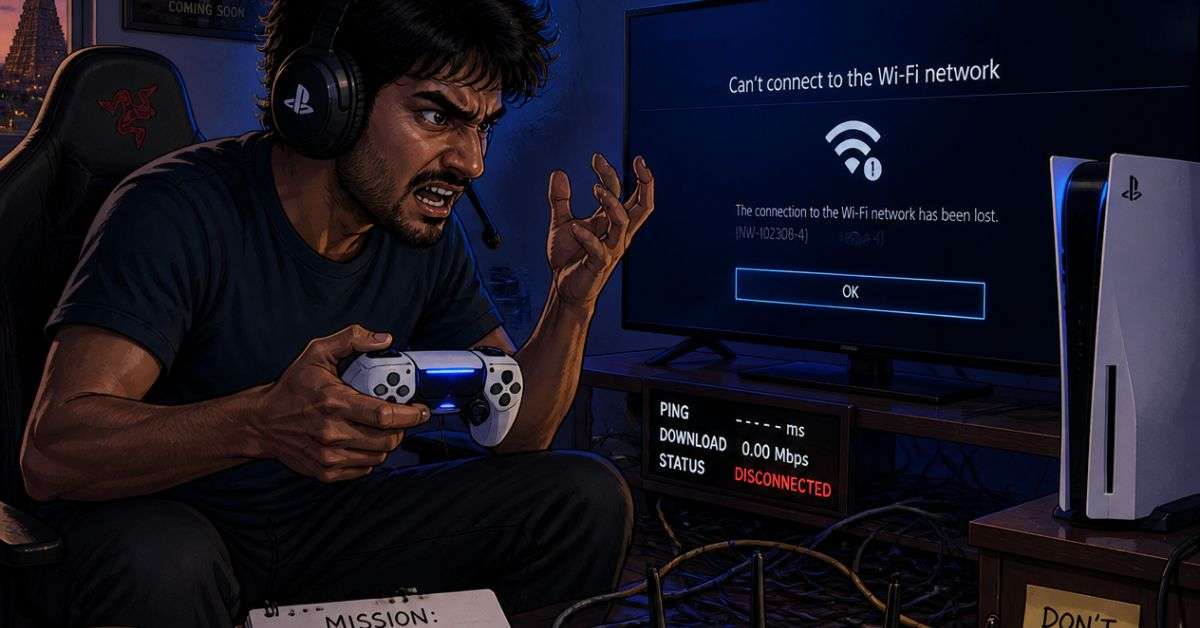
You’re in the middle of an intense online match. Everything is going perfectly, your team is about to win, and suddenly your PlayStation 5 loses its internet connection.
Your game freezes, you’re disconnected from the server, and the PS5 displays a network error.
You reconnect to Wi-Fi, restart your game, and hope it won’t happen again.
But a few minutes later, the same problem returns.
If your PS5 keeps disconnecting from Wi-Fi, refuses to connect to the internet, or experiences frequent network errors, you’re certainly not the only gamer dealing with this frustrating situation.
Before assuming your PlayStation needs hardware repair, it’s important to understand what might be causing the problem.
Sometimes it’s your home Wi-Fi network. Sometimes it’s a temporary PlayStation Network issue. In other cases, the console itself may need technical attention.
At ConsoleFixit Chennai, we help PlayStation users explore repair options for gaming console problems, including connectivity-related faults.
Here’s how to identify the possible cause and decide what to do next.
Why Does My PS5 Keep Disconnecting from Wi-Fi?
Your PlayStation 5 relies on a stable network connection for online multiplayer games, digital downloads, PlayStation Store access, and system updates.
When the connection becomes unstable, you may notice:
PS5 disconnecting during online multiplayer games
Wi-Fi connected but internet not working
PlayStation Network sign-in failures
Slow or interrupted game downloads
PS5 unable to detect available Wi-Fi networks
Frequent internet connection failed messages
High ping or unstable online gameplay
These symptoms may look similar, but they can have different causes.
For example, getting disconnected from a multiplayer match doesn’t necessarily mean your console’s Wi-Fi hardware is defective.
The issue may involve your internet service provider, router, wireless interference, game servers, or PS5 network settings.
8 Things to Try When Your PS5 Won’t Connect to Wi-Fi
1. Check Whether PlayStation Network Is Working
Before changing anything on your console, check whether PlayStation Network is experiencing an outage.
Sometimes your internet connection is perfectly fine, but a PlayStation service is temporarily unavailable.
If a service outage is reported, wait for Sony to resolve it.
Changing your console settings will not fix a PlayStation Network server outage.
2. Restart Your PlayStation 5
A simple restart can help resolve temporary connection problems.
Follow these steps:
Press the PS button on your DualSense controller.
Open the Power menu.
Select Restart PS5.
Allow the console to restart completely.
Reconnect to your Wi-Fi network.
Check whether the connection is stable.
3. Restart Your Wi-Fi Router
Your home router may occasionally develop temporary connection problems.
Try switching off your router and modem, where applicable.
Wait at least five minutes before turning them back on.
Allow the internet connection to become fully operational before testing your PS5.
If other devices in your home are also experiencing connectivity issues, the router or internet connection may be responsible.
4. Move Your PS5 Closer to the Router
Wi-Fi signal quality can decrease when the router is far from your gaming console.
Concrete walls, metal objects, cabinets, and neighbouring wireless networks can affect wireless performance.
If possible, test your PS5 closer to the router.
Avoid placing the console in a tightly enclosed cabinet.
Remember to maintain proper ventilation around your PlayStation.
If moving closer improves the connection, Wi-Fi signal strength or interference may be contributing to the problem.
5. Check Your PS5 Internet Connection Settings
Make sure your PlayStation is connected to the correct Wi-Fi network.
On your PS5:
Open Settings.
Select Network.
Open Settings.
Select Set Up Internet Connection.
Choose your home Wi-Fi network.
Enter the correct password if requested.
Select Connect.
You can also run the internet connection test from the Network settings to check whether the console can connect successfully.
If your router uses separate networks for the 2.4 GHz and 5 GHz frequency bands, you may test each compatible network.
A 5 GHz network can provide good performance over shorter distances, while 2.4 GHz generally offers better range but may experience more interference.
The best option depends on your router, surroundings, and network conditions.
6. Test Your PS5 With an Ethernet Cable
This is one of the most useful troubleshooting steps.
Instead of connecting through Wi-Fi, connect your PS5 directly to the router using a compatible Ethernet cable.
To configure it:
Connect the Ethernet cable to your PS5 and router.
Open Settings.
Go to Network.
Select Settings.
Open Set Up Internet Connection.
Select Set Up Wired LAN.
Choose Connect.
Now test your internet connection.
If Ethernet works reliably but Wi-Fi continues disconnecting, the problem may involve wireless signal quality, router configuration, interference, or the console’s wireless connectivity.
It doesn’t automatically prove that the PS5’s Wi-Fi hardware is damaged.
Start your Buy, Sell, Repair Game Console. To find your closest store
Leave your mobile phone number and we will call you back
7. Update Your PS5 System Software
Keeping your PlayStation software updated can help avoid compatibility and connection-related problems.
To check for available updates:
Open Settings.
Select System.
Choose System Software.
Open System Software Update and Settings.
Install an available update using the official instructions.
If your PS5 cannot access the internet normally, Sony also provides supported USB update procedures.
Never interrupt a system software update.
8. Check Whether Other Devices Can Connect
Try connecting your smartphone, laptop, or another device to the same Wi-Fi network.
If several devices are experiencing problems, contact your internet service provider or investigate your router.
If your PS5 alone is affected, try another authorised network, such as a temporary mobile hotspot, where available.
Be mindful of mobile data charges.
If the console repeatedly fails to connect to multiple working Wi-Fi networks, the PS5 may require further diagnosis.
PS5 Connected to Wi-Fi but No Internet – What’s the Difference?
Seeing a Wi-Fi connection symbol doesn’t necessarily mean your PS5 has full internet access.
Your console may successfully connect to the router while the router itself has no working internet connection.
For example, your home Wi-Fi may be functioning, but your broadband provider could be experiencing an outage.
It’s also possible for your general internet connection to work while a particular PlayStation service is temporarily unavailable.
Before arranging a hardware repair, check whether the problem affects other devices and online services.
Why Does My PS5 Lag During Online Gaming?
Online gaming performance depends on more than internet download speed.
A connection can have good download speeds but still suffer from high latency, packet loss, or inconsistent response times.
These issues may cause:
Delayed player movement
Sudden character teleporting
Unresponsive online controls
Voice chat interruptions
Multiplayer disconnections
Try using a wired Ethernet connection where practical.
If only one online game experiences problems, check that game’s server status.
Changing your PS5 hardware will not necessarily solve an issue caused by remote game servers or your broadband connection.
Can a PS5 Wi-Fi Problem Be Caused by Hardware Damage?
Yes, although hardware damage is only one possible explanation.
If your PS5 cannot detect working wireless networks, repeatedly fails to establish connections under different conditions, or began experiencing problems after physical damage, technical inspection may be appropriate.
Possible hardware-related issues can involve the console’s wireless connectivity components or associated circuitry.
However, these faults should not be diagnosed solely from an internet connection error message.
A technician should first help rule out network configuration, router, service-provider, and software problems.
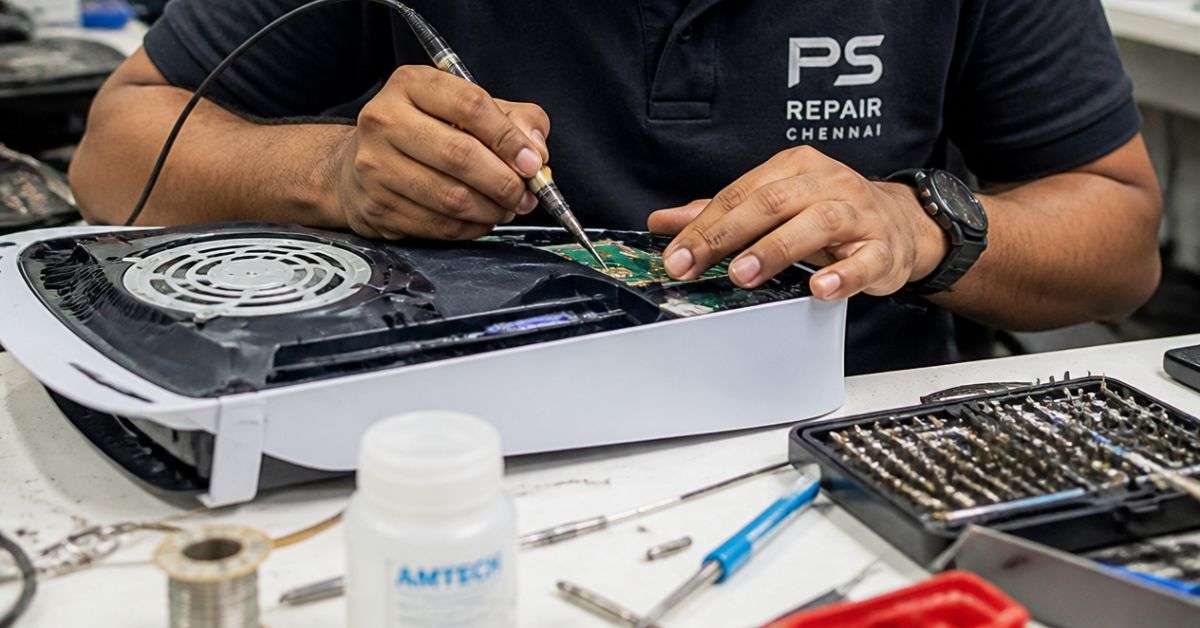
PS5 Wi-Fi & Network Repair in Chennai – Contact ConsoleFixit
If you’ve tried the basic troubleshooting steps and your PlayStation still cannot connect reliably, you can contact ConsoleFixit for technical assistance.
ConsoleFixit provides gaming console repair enquiries across Chennai, including PlayStation connectivity-related problems.
Other PlayStation services include:
PS5 and PS4 power problems
PlayStation HDMI repair
PS5 overheating and cooling issues
Console cleaning and maintenance
PlayStation controller repairs
PS5 startup and hardware faults
Controller connectivity problems
The available repair options depend on the diagnosis and your specific console model.
Find Your Nearest ConsoleFixit PS5 Repair Centre in Chennai
Whether you’re in Central Chennai or South Chennai, you can choose a ConsoleFixit location that’s convenient for you.
ConsoleFixit – Vadapalani
Looking for PS5 repair near Vadapalani?
Our Vadapalani branch is located on Arcot Road, opposite Nexus Forum Vijaya Mall.
Address: No. 159, KP Tower, 2nd Floor, Arcot Road, opposite Nexus Forum Vijaya Mall, Vadapalani, Chennai – 600026.
If you’re based around Chromepet, Pallavaram, Tambaram, or nearby areas, our Chromepet branch provides another option for gaming console repair assistance.
Address: First Floor, Shop No. 2, Door No. 8, Vaishnava College Road, Shanthi Nagar, Chromepet, Chennai – 600044.
The repair cost depends on the actual cause of the problem.
If the issue involves a home router, internet service provider, or temporary software problem, replacing console hardware may not be necessary.
If a PS5 connectivity component is faulty, the repair may require specialised inspection and replacement parts.
Before authorising any work, ask about the diagnosis, estimated repair price, service time, and applicable warranty.
If your PlayStation is still covered by Sony’s manufacturer’s warranty, check the official service options first.
Frequently Asked Questions
Why does my PS5 keep disconnecting from Wi-Fi?
Possible causes include weak wireless signals, router problems, interference, software issues, internet service interruptions, or console hardware faults.
Why is my PS5 connected to Wi-Fi but the internet isn’t working?
Your console may be connected to your router even though the router has no internet access. Check other devices and your internet provider’s connection.
Does using Ethernet improve PS5 internet stability?
A wired Ethernet connection can avoid some wireless interference and signal problems, although overall performance still depends on the router and internet service.
Can PS5 Wi-Fi hardware be repaired?
Certain hardware-related connectivity faults may be repairable, depending on the component involved and the condition of the console.
Can changing DNS settings fix PS5 Wi-Fi disconnections?
DNS changes may help some name-resolution problems, but they are not a universal fix for weak Wi-Fi signals or physical hardware faults. Seek guidance before changing advanced network settings.
Where can I get PS5 network repair in Chennai?
You can contact ConsoleFixit in Vadapalani, Anna Nagar, Chromepet, or Arumbakkam to enquire about PlayStation connectivity diagnosis and available repair services.
Get Back to Gaming Without Constant Disconnections
A PS5 that keeps losing its internet connection can turn an enjoyable gaming session into a frustrating experience.
But before assuming the console is broken, check the basics.
Restart your devices, test another network, update your system software, and try a wired connection.
If the problem continues across multiple working networks, getting the console inspected may help you understand what’s wrong.
Looking for PS5 Wi-Fi or network-related repair assistance in Chennai?
Contact ConsoleFixit and choose your nearest branch.






 PlayStation Repair
 Xbox Repair
 Nintendo Repair
 Virtual reality (VR) Repair
 Accessories Repair